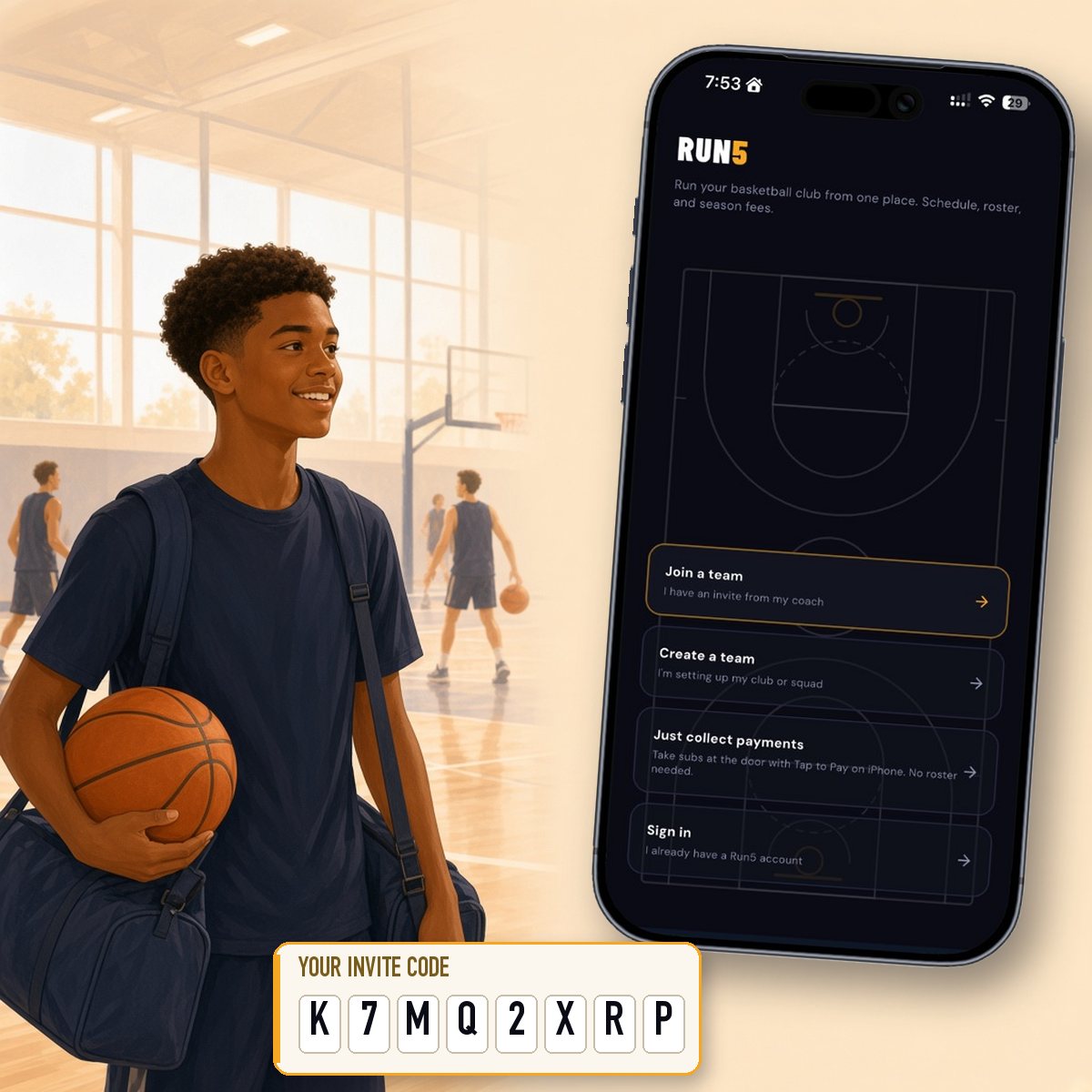
Before you start
- Download Run5 from the App Store.
- Have your invite code ready. It is 8 letters and numbers, for example K7MQ2XRP.
- No code? Ask your coach or club admin to send you one.
Join your team (first time)
- Open Run5.
- Tap Join a team (“I have an invite from my coach”).
- Enter your invite code and tap Continue.
- Run5 shows your team, your name and your email from your coach’s invite. Check they’re right.
- Set a password. Your name and email are already filled in for you.
- Tap Create account & join. That’s it. You’re on the team, linked to your place on the roster.
Already have a Run5 account?
- Open Run5 and tap Join a team.
- Enter your new invite code and tap Continue.
- Sign in with your email and password, then tap Sign in & join. The new team is added to your account.
Logging in next time
- Open Run5 and tap Sign in.
- Enter your email (the one from your invite) and the password you set.
- Tap Sign In. You won’t need your invite code again.
- Forgot your password? Enter your email, tap Forgot password? and follow the link we email you.
Good to know
- Name or email wrong on the invite? Ask your coach to fix it before you join, as your email is what you log in with.
- Each code works once, for one person. Don’t share yours.
- Codes expire 14 days after they are created. If yours has expired, ask your coach for a new one.
- “Invite code not found” or “already used”? Check for typos, then ask your coach for a new code.
- Under 18? Your parent or guardian gets the invite code and joins first.
Still stuck? See Support or the full How-to guides.